
The DeputIE
Music Composition Studio — User Manual
Overview
The DeputIE is a desktop music composition studio designed to help songwriters, producers, and music enthusiasts create melodic motifs, chord progressions, and drum patterns —all from one unified workspace. Whether you are a complete beginner exploring music theory for the first time or an experienced musician looking for a powerful composition assistant, The DeputIE provides the tools you need.
At its core, the application features an intelligent melody generator that creates musical ideas based on your chosen key, scale, and tempo without the use of Artifical intelligence (A.I.). You can then refine those ideas using manuscript notation, a piano-roll sequencer, guitar and bass tablature views, and a dedicated drum manuscript. The built-in theory panels, chord progression lists, and emotion-based suggestions help guide your creative decisions.
Key highlights include:
- Multiple notation modes — Manuscript, Sequencer, Tablature (standard & bass guitar), and Drums
- Melody generation — Instantly generate melodies with adjustable complexity, range, and density
- Chord progression tools — View chord progressions built from your selected scale and key
- Song Arranger — Organize sections (verse, chorus, bridge, etc.) into a full song structure
- Theory & Learn panels — Built-in educational resources and music theory reference
- MIDI export — Export your compositions as MIDI files for use in any DAW
- Assistant panel — Real-time compositional suggestions scored across rhythm, pitch, harmony, structure, and expression
Installation / Setup
System Requirements
- Operating System: Windows 10 or later (64-bit recommended)
- RAM: 4 GB minimum, 8 GB recommended
- .NET Framework: .NET Framework 4.7.2 or later
- Display: 1280 × 900 minimum resolution Best experience: desktop or large laptop screens
- Audio: A working audio output device for playback
Installation Steps
- Download The DeputIE installer from the official website at deputie.vigilantiemusic.com.
- Run the installer and follow the on-screen prompts. Accept the license agreement and choose your install location.
- Once installation is complete, launch The DeputIE from your desktop shortcut or Start menu.
- On first launch, you may be prompted to activate your license or start a free trial. Follow the licensing dialog to complete setup.
If the application does not start, verify that the .NET Framework is up-to-date by checking Windows Update.
Licensing
You can manage your subscription and check your license status from the menu bar under File → Licensing/Account. This section provides options to manage your subscription and view your current license status.
Quick Start
Follow these steps to create your first melody in under two minutes:
- Log in — Open The DeputIE and sign in to your account (or start your free trial) so all features are available.
- Choose a scale — In the Scales Radio Button panel, select a scale type such as Major, Natural Minor, Harmonic Minor, Melodic Minor, or Pentatonic Minor.
- Select a key — Click one of the piano keys at the top of the dashboard (e.g., C, D, G) to set the root note.
- Set your tempo — Optionally drag the Tempo slider or type a BPM value directly into the tempo input box (range: 60–240 BPM).
- Adjust generation settings — Optionally tweak the Complexity, Range, and Density sliders in the Generation Controls bar.
- Click Generate — Press the green Generate button to create a new melody.
- Listen — Click Play to hear your melody. Use Stop to end playback.
- Refine — Lock measures you like using the Measure Lock buttons, then click Generate again. Only unlocked measures regenerate.
- Add to a view — Use Add to Manuscript or Add to Sequencer to transfer your melody into the full notation or piano-roll view.
- Save — Go to File → Save (or press Ctrl+S) to save your project.
You can also generate just the rhythm or just the pitch independently using the Rhythm and Pitch buttons next to Generate.
Interface Overview
The DeputIE's interface is organized into several distinct areas, all accessible from a single window:
Title Bar
The custom title bar displays The DeputIE logo, the application name, and the subtitle "Music Composition Studio." Standard minimize, maximize, and close buttons are on the right.
When you launch The DeputIE, sign in to your account first (or start your free trial) to unlock full access to workspace and licensing features.
Menu Bar
Below the title bar is a traditional menu bar with four menus:
- File — New Project, Open, Save, Save As, Export (MIDI), Print, Licensing, and Exit.
- Edit — Undo, Redo, Cut, Copy, Paste, Delete, Select All, and Select None.
- View — Toggle visibility of Beat Numbers, Beat Lines, and Subdivision Ticks.
- Help — User Online Manual, Check for Updates, Release Notes, Report a Bug, Feature Request, Diagnostics, and About.
Top Dashboard
The large dashboard area under the menu bar is divided into a grid containing:
- Logo panel — The DeputIE branding and link to Vigilantie Music.
- Scales panel — Radio buttons for selecting the active scale type.
- Piano Keys — A visual keyboard to set the root note of your key.
- Chord Progressions — A list displaying common progressions for the current key and scale.
- Instruments — A searchable dropdown to select your playback instrument.
- Emotion Stereotype — A display showing the emotional character suggested by your current settings.
- Tempo — A slider and text input to control BPM.
- Scales / Chords / Formula — A reference row showing scale note names, Roman numeral chord labels, and interval formulas.
- Play controls — Play, Single, Chords, and Stop buttons.
Mode Buttons
A row of four mode buttons lets you switch the main workspace view: Manuscript, Sequencer, Tablature, and Drums.
Panel Buttons
A separate row of four panel buttons toggles the right-side panels: Theory, Sheets, Arranger, and Learn.
Generation Controls Bar
Spanning the full width below the dashboard, this bar contains the Measure Lock toggles, Complexity/Range/Density sliders, Resolve, Metronome, Loop buttons, and the main Generate, Rhythm, and Pitch buttons.
Main Workspace (Left Panel)
The large left area is where your musical notation lives. It displays measures of notes in whichever mode you have selected. A zoom scroll bar at the bottom lets you zoom in or out.
Right Panel
The collapsible right panel hosts whichever panel you have active (Theory, Sheets, Arranger, or Learn). It can be collapsed or expanded using the handle on its left edge. At its top is the "Add To" toolbar with Save Melody, Load Melody, Add to Manuscript, and Add to Sequencer buttons.
Assistant Panel
At the bottom of the right panel, an expandable Assistant section provides real-time compositional feedback with scores for rhythm, pitch, harmony, structure, and expression.
Main Workspace
The main workspace occupies the left side of The DeputIE's window and is where all of your musical content is displayed and edited. It adapts depending on which mode is currently active.
Workspace Layout
The workspace consists of a scrollable area containing your measures of music. Depending on your settings, you will see either three or four measures displayed at a time. Each measure is drawn on a staff (or grid, in sequencer mode) with appropriate clef symbols, time signatures, and note positions.
Zoom Control
At the bottom of the workspace, a custom zoom scroll bar lets you zoom in for detailed editing or zoom out for a broader view. Drag either end of the zoom bar to adjust the zoom level.
Switching Views
Use the mode buttons (Manuscript, Sequencer, Tablature, Drums) to switch between different notation views. Your musical content is preserved across views—switching modes simply changes how the notes are displayed.
Use the zoom bar to zoom out when arranging full sections, then zoom in to fine-tune individual notes.
Manuscript Mode
Manuscript Mode displays your composition in traditional Western music notation on a staff. This is the default view and is ideal for musicians who read sheet music.
Staff Display
Notes are rendered on a five-line staff with the appropriate clef (treble, bass, alto, tenor, or soprano). The clef can be changed using the clef buttons in the Theory panel when Manuscript mode is active.
Time Signatures
The DeputIE supports multiple time signatures: 4/4, 2/4, 3/4, 6/8, 12/8, 5/4, and 7/8. Select the desired time signature from the buttons in the Theory panel. The manuscript view reformats to reflect the chosen meter.
Measures
Your composition is divided into measures (bars). Each measure appears as a clearly bounded section on the staff, separated by bar lines. Bracket markings group measures visually.
Editing Notes
Notes placed by the melody generator are displayed with their correct pitch position and rhythmic value. You can use Edit menu operations (Cut, Copy, Paste, Delete) to manipulate selected notes or drag Notes to different pitches, mouse right-click to delete.
Manuscript Mode is best for viewing your composition in a print-ready format. Use the Sequencer for more granular pitch editing.
Sequencer Mode
Sequencer Mode presents your music on a piano-roll grid, similar to what you would find in a digital audio workstation (DAW). This view is especially useful for precise rhythmic placement and pitch editing.
Grid Layout
The sequencer displays a horizontal grid where the vertical axis represents pitch (with a piano keyboard reference on the left) and the horizontal axis represents time. Notes appear as colored blocks at the correct pitch and time position.
Piano Reference
A vertical piano strip on the left side shows which pitch row corresponds to which note. Hovering over a row highlights the corresponding piano key.
Ruler
A ruler bar at the top of the sequencer marks beat positions, making it easy to see where each beat and subdivision falls within a measure.
Scrolling & Navigation
The sequencer scrolls both horizontally (through time) and vertically (through pitch range). The piano reference and ruler stay synchronized with your scroll position.
Drum Mode Toggle
Within the Sequencer, a Drum Mode toggle switches the grid to display percussion-specific rows instead of pitched notes. This is useful for programming drum patterns directly on the sequencer grid.
Clef & Time Signatures
The Sequencer panel has its own set of clef and time signature buttons that work independently from Manuscript mode.
Standard Guitar Tablature Mode
Standard Guitar Tablature Mode displays your melody on a six-string guitar tab staff. This view is designed for guitarists who prefer reading tablature over traditional notation.
Tab Staff
The tablature staff shows six horizontal lines, each representing a string of the guitar (low E at the bottom, high E at the top). Numbers on each line indicate which fret to play.
Chord Diagrams
Above the tab staff, chord symbols are shown at the beginning of each measure when chord data is available.
String Labels
String tuning labels appear on the left side, showing the standard tuning (E A D G B E).
Manuscript Overlay
The guitar tab view includes a traditional notation staff above the tab lines. This dual-view lets you see both tab fret numbers and standard notation simultaneously. You can switch between treble and bass clef using the clef buttons.
Guitar-Specific Techniques
The tablature panel provides technique buttons for guitar-specific articulations:
- Vibrato Bar Scoop — A vibrato bar dip before the note.
- Vibrato Bar Dip — A quick dip and release using the vibrato bar.
- Guitar Shake — A physical shake articulation.
- Open Wah/Volume Pedal — Marks pedal usage on the notation.
- Volume Swell — A gradual increase in volume.
- Strum Up / Strum Down — Indicates strumming direction.
- Fade In / Fade Out — Gradual volume changes.
- Full Barre / Half Barre — Barre chord indicators.
- Fingered Fret — A specific fingering indicator.
- Open String — Marks an open (unfretted) string.
- String Not Played — Marks a muted or unplayed string.
- Palm Muting — Palm-muted notes.
Bass Guitar Tablature Mode
Bass Guitar Tablature Mode works just like the Standard Guitar Tablature view but is configured for a four-string bass guitar.
Four-String Layout
The tab staff displays four lines representing the standard bass tuning (E A D G). Fret numbers appear on each line to indicate which position to play.
Dual Notation
Like the guitar tablature, the bass view includes both a traditional notation staff and the tab staff. The bass clef is used by default for the notation staff.
Chord & Time Signature Support
Bass tablature shares the same chord diagram placement and time signature options as the guitar tab. Measures, bar lines, and chord labels are displayed consistently across both tablature modes.
Drum Manuscript Mode
Drum Manuscript Mode provides a traditional percussion notation view using a five-line staff with a percussion clef. This mode is tailored for writing and viewing drum and percussion parts.
Instrument Rows
The drum manuscript is divided into five main instrument lanes:
- Bass Drum — At the bottom of the staff. (1st ROW)
- Snare Drum — Positioned in the lower-middle area. (2nd ROW)
- Toms — Placed in the middle range of the staff. (3rd ROW)
- Hi-Hat / Cymbals — Shown just below the crash line. (4th ROW)
- Crash Cymbals — Displayed on the top line of the staff. (5th ROW)
Drum Comboboxes
Each instrument lane has a corresponding dropdown that lets you choose the specific drum or cymbal sound for that lane. For example, you might select from different snare types or choose between various hi-hat articulations.
Genre Influence
When working with drums, genre radio buttons (EDM, Hip Hop, Pop, R&B, Rock, Trap) and a Genre Influence slider let you shape generated drum patterns toward a specific musical style.
Time Signatures
Drum mode has its own set of time signature buttons (4/4, 2/4, 3/4, 6/8, 12/8, 5/4, 7/8) that control the drum staff independently.
Melody Generator
The Melody Generator is the heart of The DeputIE. It creates musical phrases based on your current key, scale, tempo, and slider settings, so you can quickly explore melodic ideas without starting from a blank page.
How It Works
- Choose a scale type from the Scales panel.
- Set your desired key using the piano keys.
- Optionally adjust the Complexity, Range, and Density sliders.
- Click Generate to produce a new melody across all unlocked measures.
Generate, Rhythm, and Pitch Buttons
- Generate — Creates both the rhythmic pattern and pitch content at the same time.
- Rhythm — Regenerates only the rhythmic placement while keeping existing pitches.
- Pitch — Regenerates only the pitch content while keeping existing rhythm.
This separation lets you experiment: if you like a rhythm but want different notes, click Pitch. If you like the notes but want a different groove, click Rhythm.
Measure Locks
Each measure has a lock toggle (Measure 1 through Measure 4). When locked, a measure is excluded from regeneration. This lets you preserve a measure you like while regenerating the rest.
A common workflow: Generate a full melody, lock the measures you like, and regenerate until every measure sounds great.
Resolve
The Resolve button (labeled "R") attempts to resolve the melody to a musically satisfying ending. Use this to give your phrase a sense of closure.
Comboboxes
Comboboxes (dropdown selectors) appear in several places throughout The DeputIE. They allow you to choose from a list of options by clicking the dropdown arrow or typing to search.
Instrument Combobox
Located in the Chord Progressions / Instruments section of the top dashboard, this lets you select which MIDI instrument sound is used during playback. It is searchable—simply start typing an instrument name and the list filters in real time.
Drum Comboboxes
In Drum Manuscript Mode, five dedicated comboboxes choose the sound for each drum lane:
- Bass Drums — Select from different kick drum sounds.
- Snare Drums — Choose between various snare tones and articulations.
- Tom Drums — Select high, mid, or low tom variants.
- Hi-Hats — Choose open, closed, or pedal hi-hat sounds.
- Cymbals — Select from crash, ride, splash, and other cymbal types.
Chord Tools
The DeputIE includes several tools for working with chords, making it easy to understand harmonic context and audition chord sounds.
Chord Progression List
The Chord Progressions panel in the top dashboard shows a scrollable list of common progressions for your current key and scale. Each progression is displayed as a horizontal row of chord boxes (e.g., I – IV – V – I). Hovering over a progression reveals a tooltip with additional information.
Chord Cards
When you interact with chord progressions, chord cards may appear showing the letter names (e.g., Am, F, G, C). Up to four cards are displayed at a time.
Chords Playback
The Chords button in the Play controls plays back the current chord progression so you can hear how it sounds with your chosen instrument and tempo.
Scale Notes & Roman Numerals
Below the piano keys, a reference grid shows:
- Row 1 — Scale Notes: Note names of the current scale (8 columns for each degree plus octave).
- Row 2 — Roman Numerals: Roman numeral chord labels for each scale degree.
- Row 3 — Formula: Interval formula for each degree's chord.
Piano Keys
The Piano Keys section is a visual keyboard spanning one octave, located in the top dashboard. It serves as the primary control for selecting the root note (key) of your composition.
Layout
The keyboard displays all twelve chromatic notes: C, C#/Db, D, D#/Eb, E, F, F#/Gb, G, G#/Ab, A, A#/Bb, and B/Cb. White keys represent natural notes and black keys represent sharps and flats. Each sharp/flat key displays both enharmonic names.
Selecting a Key
Click any piano key to set it as the root note. When you change the root note:
- The Scale Notes row updates to reflect the new key.
- The Chord Progressions list recalculates.
- The Roman Numerals and Formula rows update.
- The Emotion Stereotype display may change.
Hover over the piano keys to see a green highlight, making it easy to target the key you want.
Save / Open / New Project
The DeputIE uses a project-based workflow. All settings, notes, arrangements, and preferences are stored together in a single project file.
Creating a New Project
Go to File → New Project or press Ctrl+N. This resets the workspace to a blank state with default settings. If you have unsaved changes, you will be prompted to save first.
Saving a Project
- Save (Ctrl+S) — Saves to the current file. If never saved, a Save As dialog appears.
- Save As — Lets you choose a new file name and location.
Opening a Project
Go to File → Open or press Ctrl+O. Select your project file and click Open. Your entire workspace is restored exactly as saved.
Save your work frequently! Saving often ensures you never lose your creative progress.
MIDI / Export Features
The DeputIE allows you to export your compositions as MIDI files, enabling you to bring your ideas into any DAW or music production software.
Exporting MIDI
- Go to File → Export → Export MIDI.
- Choose a file name and location in the save dialog.
- Click Save. Your melody, including all note pitches, rhythmic values, and tempo, will be written to a standard MIDI file (.mid).
What Is Exported
- All note pitches and durations from the active composition.
- Tempo (BPM) information.
- Instrument (program change) data based on your selected instrument.
Printing
Print your composition via File → Print (Ctrl+P) or use File → Print Preview to check the layout first. The Sheets panel provides print-ready sheet views.
Assistant Suggestions
The Assistant panel is an intelligent advisor that analyzes your composition in real time and provides actionable suggestions to improve your music.
Accessing the Assistant
The Assistant lives at the bottom of the right panel. Click the expand handle or toggle button to reveal it.
Score Overview
An overall score label summarizes your composition quality. Below that, individual sub-score bars provide a visual breakdown:
- Rhythm — Evaluates rhythmic variety and interest.
- Pitch — Assesses melodic contour, range usage, and interval quality.
- Harmony — Checks how well your melody fits the chord progression.
- Structure — Looks at phrase balance, repetition, and form.
- Expression — Considers dynamic range, articulation, and musical feel.
Filter Cards
Toggle category filters (Rhythm, Pitch, Harmony, Structure, Expression) or click "All" to view every suggestion. The cards panel updates to show relevant advice.
Use the Assistant as a learning tool. Reading its suggestions can teach you music theory principles while you compose.
Beat Lines
Beat lines are vertical guide lines drawn on the workspace to help you see where each beat falls within a measure.
Toggle Options
From the View menu, you can toggle three related visual aids:
- Show Beat Numbers — Displays beat numbers above the staff at each beat position.
- Show Beat Lines — Draws vertical lines at each main beat division.
- Show Subdivision Ticks — Adds finer tick marks between beats for subdivisions.
All three are enabled by default. Disable any of them to reduce visual clutter.
Beat lines appear in all modes (Manuscript, Sequencer, Tablature, Drums) and adapt to the current time signature automatically.
Scales Radio Buttons
The Scales panel in the top dashboard provides radio buttons for choosing the musical scale used for melody generation and chord calculation.
Available Scales
- Major (Ionian) — Bright, happy sound. Interval pattern: W-W-H-W-W-W-H.
- Natural Minor (Aeolian) — Darker, melancholic quality. Interval pattern: W-H-W-W-H-W-W.
- Harmonic Minor — Raised 7th degree, giving a dramatic, exotic sound.
- Melodic Minor — Raises 6th and 7th degrees (ascending), smoother minor sound often used in jazz.
- Pentatonic Minor (Ascending) — Five-note scale widely used in blues, rock, and pop.
How Scale Selection Works
When you select a scale, the entire dashboard updates: Scale Notes show the correct note names, Roman Numerals and Formula rows recalculate, Chord Progressions refresh, and the Emotion Stereotype may change. Generated melodies will use notes exclusively from the selected scale.
Emotion Stereotype
The Emotion Stereotype display is located in the top-right area of the dashboard. It shows a text label describing the general emotional character of your current key, scale, and tempo combination.
What It Does
As you change your key, scale, or tempo, the emotion label updates automatically. For example, C Major at 120 BPM might display "Bright & Confident," while the same key in Natural Minor at a slower tempo might show "Reflective & Somber."
Purpose
The Emotion Stereotype is a creative guide—it helps you understand the mood your settings are likely to produce. It is based on common associations in Western music theory and is meant to inspire, not restrict, your creativity.
Emotion labels are generalizations. The actual emotional impact depends on many factors beyond key and tempo alone.
Add To
The "Add To" toolbar sits at the top of the right panel (inside the Theory panel area) and provides quick actions for transferring your generated melody into different workspace views.
Add to Manuscript
Click Add to Manuscript (ONLY from Sequencer) to transfer the current melody into the Manuscript view. Notes are placed on the staff with correct pitch positions and rhythmic values.
Add to Sequencer
Click Add to Sequencer to transfer the melody into the piano-roll view. Notes appear as blocks at the correct pitch and time positions.
Generate a melody, audition it with Play, then use Add To to place it in the view that best suits your editing workflow.
Theory Panel
The Theory panel occupies the right side of the workspace when activated. It provides context-sensitive music theory controls that change depending on the active mode.
Panel Contents
- Clef buttons — Switch between treble, bass, alto, tenor, and soprano clefs (Manuscript/Sequencer) or percussion clef (Drums).
- Time signature buttons — Select 4/4, 2/4, 3/4, 6/8, 12/8, 5/4, or 7/8. Each mode maintains its own time signature.
- Guitar technique buttons — In Tablature mode, buttons for vibrato bar, strumming, fading, barre chords, palm muting, etc.
- Drum controls — In Drum mode, drum-specific comboboxes and genre radio buttons appear.
Mode-Sensitive Behavior
The Theory panel automatically shows different controls depending on which workspace mode you are in. It adapts when you change modes.
Sheets Panel
The Sheets panel provides a print-oriented, paginated view of your composition designed for reviewing your work as it would appear on paper.
Sheet Views
-
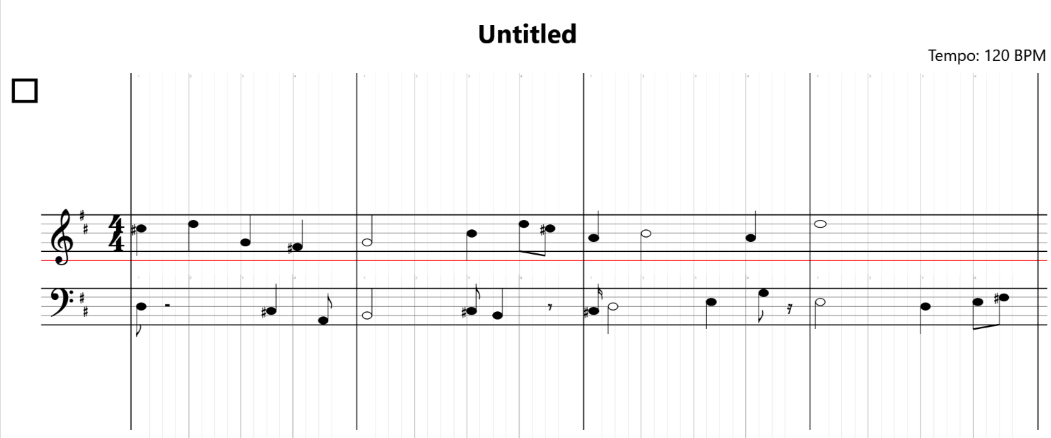
Manuscript Sheets — Standard notation pages.
-
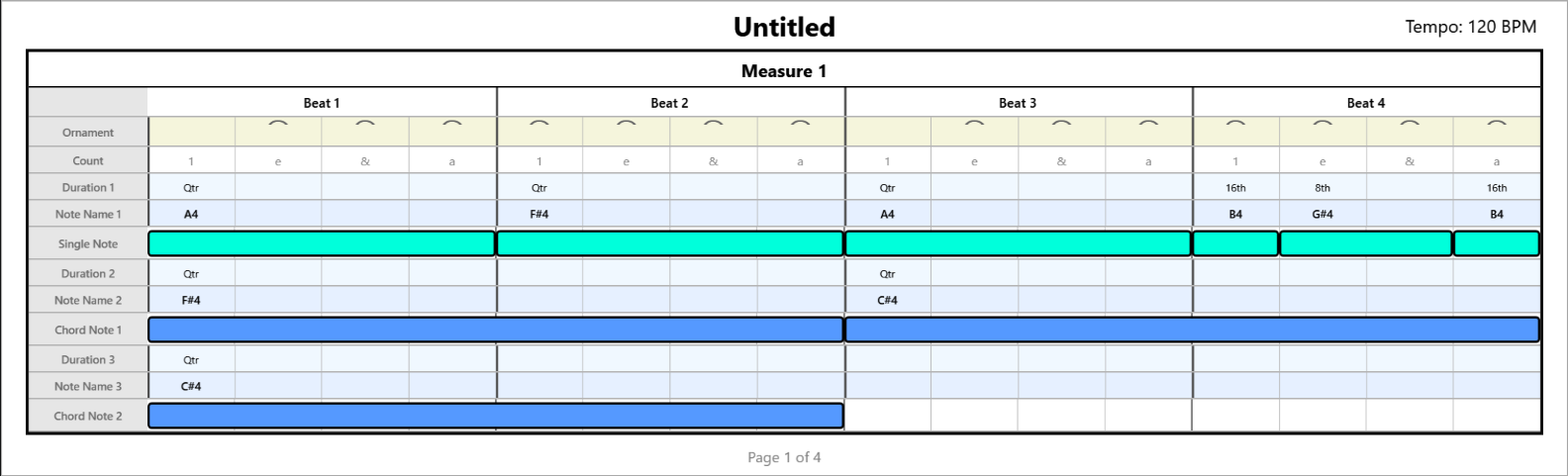
Sequencer Sheets — Piano-roll style pages.
-
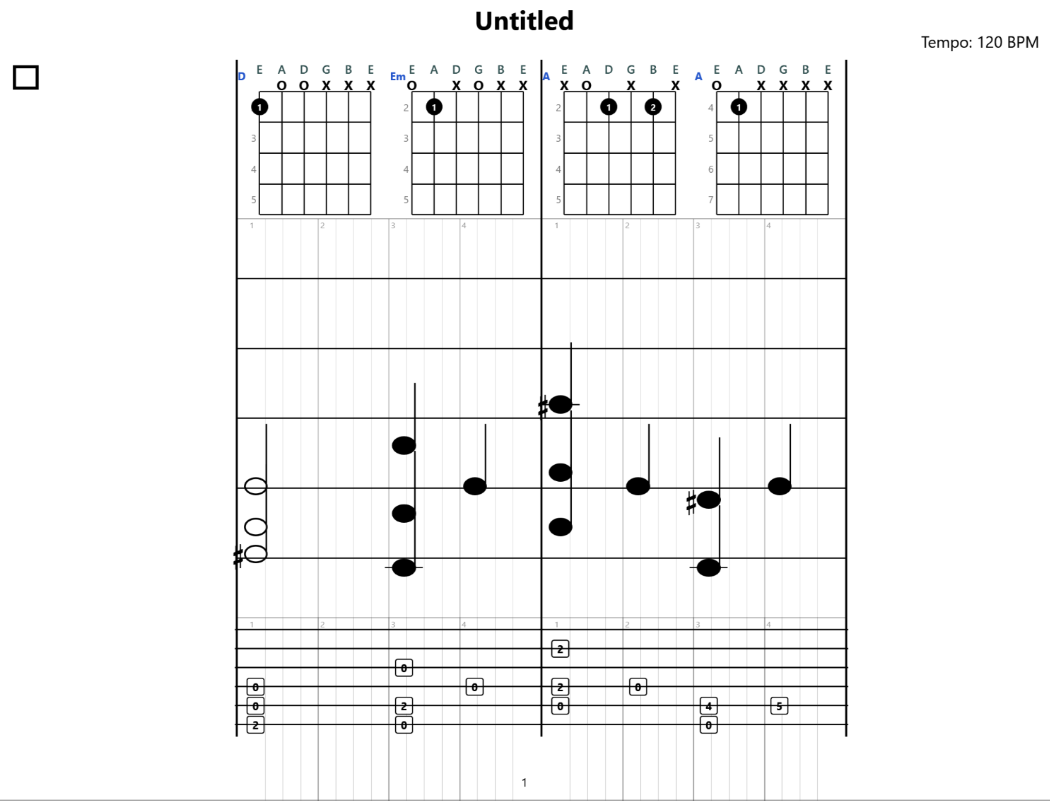
Guitar Sheets — Tablature pages for standard guitar.
-
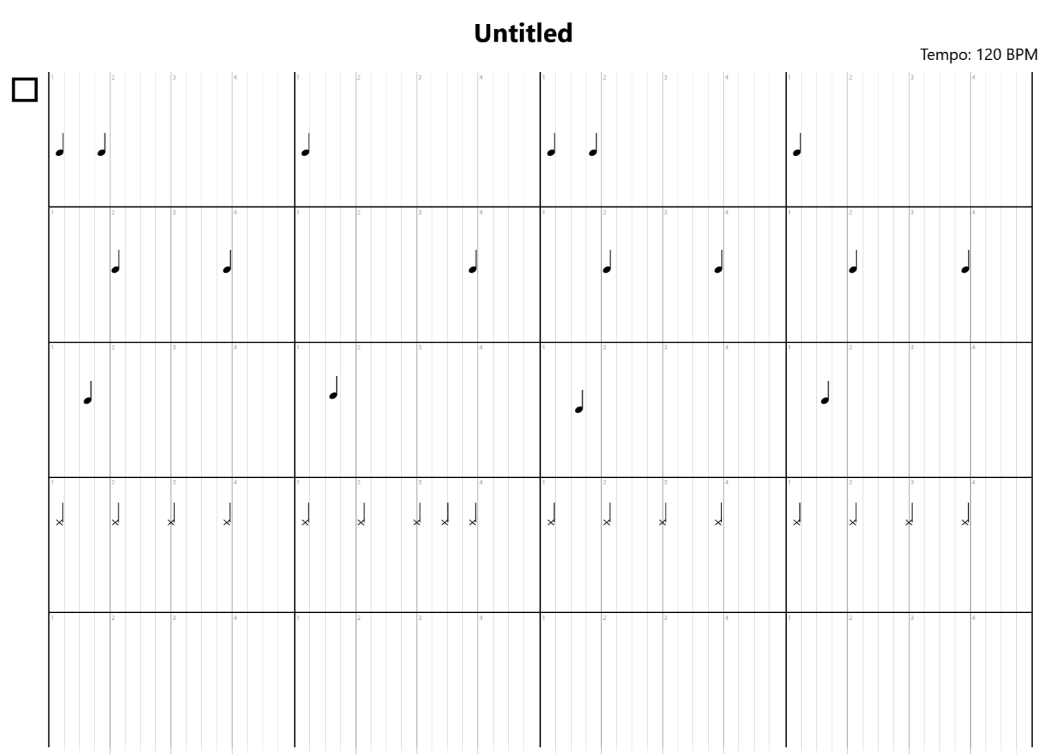
Drum Sheets — Percussion notation pages.
Sheet Controls
- Zoom In / Zoom Out — Adjust the sheet preview zoom.
- Expand — Open the sheet in a larger overlay window.
- Add Sheet — Add a new blank page.
- Edit Sheet — Enter edit mode for the selected sheet.
- Delete Sheet — Remove the selected page.
Pages scroll vertically and can be zoomed to fit your screen. Use the Expand button for comfortable reading.
Arranger Panel
The Song Arranger is a dedicated window for building the overall structure of your song by arranging sections (Intro, Verse, Chorus, Bridge, Outro, etc.) in order.
Opening the Arranger
Click the Arranger button in the Panels row, or use the Open Song Arranger button in the Arranger panel.
Arranger Window
The Song Arranger opens in a separate window with:
- Arrangement Timeline — A scrollable timeline showing your arranged sections left to right.
- Section Cards — Each section is a card you can add, reorder, or remove.
- Section Count — A label showing how many sections are in your arrangement.
- Genre Panel — Options for genre-specific arrangement patterns.
- Instrument Panel — Per-section instrument assignment.
- Status Text — Feedback messages about your arrangement.
Using the Arranger
Add sections by selecting a section type and clicking add. Rearrange by dragging sections into the desired order. Each section references the musical content from your main workspace.
Learn Panel
The Learn panel is an integrated educational resource that helps you build understanding of music theory and composition concepts without leaving the application.
Accessing Learn
Click the Learn button in the Panels row. The panel opens as a popup on the right side of the workspace.
Features
- Category List — A scrollable list of topics organized by category (scales, chords, intervals, rhythm, song structure, etc.).
- Search — A search box filters topics by keyword.
- Filter Chips — Quick-filter tags to narrow content by category.
- Content Area — Detailed educational content in a clear, beginner-friendly style.
Use the Learn panel while composing. If you encounter an unfamiliar term, search for it in Learn without leaving your workspace.
Buttons
The DeputIE uses several categories of buttons. Here is a summary of the key buttons and what they do:
Playback Buttons
- Play — Starts playback of the current melody.
- Single — Plays a single note for auditioning individual pitches.
- Chords — Plays the chord progression for the current key and scale.
- Stop — Stops all playback immediately (red glow).
Generation Buttons
- Generate — Creates a new melody (rhythm + pitch) for all unlocked measures (bright green).
- Rhythm — Regenerates only the rhythm.
- Pitch — Regenerates only the pitch.
Utility Buttons
- Resolve (R) — Resolves the melody to a satisfying ending.
- Metronome (M) — Toggles metronome click during playback.
- Loop (L) — Toggles looping for continuous repeat.
Measure Lock Toggles
Four toggles (Measure 1–4) lock or unlock individual measures. Locked measures show a lock icon and are skipped during generation.
Panel & Mode Buttons
Mode buttons (Manuscript, Sequencer, Tablature, Drums) switch the workspace view. Panel buttons (Theory, Sheets, Arranger, Learn) toggle the right-side panels. All use a consistent glowing green border style.
Music Symbol Buttons
Music Symbol buttons use a click-drag-place workflow. Click a symbol button to capture its glyph, drag the glyph's shadow preview to the desired location on the canvas, then release to place it. Each symbol has its own tooltip, but all symbols follow this same interaction pattern.
Instruments
The Instruments combobox lets you choose which sound is used when playing back your melody. The DeputIE supports the full General MIDI instrument set.
Selecting an Instrument
Click the dropdown in the top dashboard and scroll or type to search. Real-time filtering narrows the list as you type.
Instrument Categories
- Piano — Acoustic Grand, Bright Acoustic, Electric, Honky-Tonk, etc.
- Chromatic Percussion — Celesta, Glockenspiel, Vibraphone, Marimba, etc.
- Organ — Drawbar, Percussive, Rock, Church, etc.
- Guitar — Acoustic Nylon, Acoustic Steel, Electric Jazz, Distortion, etc.
- Bass — Acoustic, Electric, Fretless, Synth Bass, etc.
- Strings — Violin, Viola, Cello, String Ensemble, Harp, etc.
- Brass & Woodwinds — Trumpet, Trombone, Sax, Oboe, Flute, etc.
- Synth — Various leads, pads, and effects.
Tempo Slider
The Tempo control sets the speed of your composition in beats per minute (BPM).
Tempo Slider
A horizontal slider lets you drag to set the tempo. Range: 60 BPM (slow) to 240 BPM (very fast), default 120 BPM. Snaps to whole-number increments.
Tempo Input Box
Next to the slider, a text input displays the current BPM. Type a specific number and press Enter to set an exact tempo. Only accepts numeric values.
Impact on Composition
- Playback speed of your melody and chords.
- Metronome click rate.
- The Emotion Stereotype label, which factors tempo into its assessment.
Other Sliders
Sliders give you fine-grained control over generation parameters and other settings.
Generation Sliders
- Complexity — Controls rhythmic and melodic complexity. Low = simpler patterns; high = intricate phrases. Labels: "Simple," "Balanced," "Complex."
- Range — Controls the pitch span. Narrow keeps notes close; wide allows larger leaps. Labels: "Narrow," "Medium," "Wide."
- Density — Controls notes per measure. Low = sparse melodies with rests; high = busy measures. Labels: "Sparse," "Balanced," "Dense."
Tempo Slider
Controls BPM from 60 to 240 (see Tempo section).
Genre Influence Slider
In Drum mode, adjusts how strongly the selected genre affects the generated drum pattern. Low = generic; high = heavily genre-specific.
Experiment with extreme slider positions to discover unexpected ideas, then dial back toward center for balanced results.
Save Melody
The Save Melody button in the "Add To" toolbar lets you save the current melody as a reusable preset in your personal melody library.
How to Save
- Generate or compose a melody you want to keep.
- Click Save Melody.
- In the dialog, give your melody a descriptive name.
- Click Save. The melody is stored in your library.
What Is Saved
A saved melody includes all note pitches, rhythmic values, and key/scale/tempo context. When loaded later, it can be placed back exactly as it was.
Saved melodies are separate from full project files. Think of them as reusable building blocks that can be loaded into any project.
Load Melody
The Load Melody button recalls a previously saved melody from your library into the current workspace.
How to Load
- Click Load Melody in the Add To toolbar.
- A library dialog shows your saved melodies.
- Select a melody and click Load.
- The melody loads into the active workspace.
Library Management
- Rename — Change a saved melody's name.
- Delete — Remove a melody permanently.
- Cancel — Close the dialog without loading.
Troubleshooting
If you encounter issues, try the following solutions for common problems:
No Sound During Playback
- Check that your system audio is not muted and volume is turned up.
- Verify that a valid instrument is selected in the Instruments combobox.
- Ensure your audio output device is connected and recognized by Windows.
- Restart The DeputIE and try playing again.
Application Does Not Start
- Ensure your system meets minimum requirements (Windows 10, .NET Framework 4.7.2+).
- Run Windows Update to ensure .NET Framework is current.
- Try running as administrator (right-click → Run as administrator).
- Check if antivirus or firewall is blocking the application.
Melody Sounds Wrong or Off-Key
- Double-check that the correct root key is selected on the piano keys.
- Verify the scale type matches your intention (Major vs. Minor).
- Make sure the instrument combobox has not been accidentally changed.
Generated Melody Is Too Simple or Too Complex
- Adjust the Complexity slider (right for complex, left for simple).
- Adjust the Density slider for more or fewer notes per measure.
- Try a different scale type for more or fewer available notes.
Printing Issues
- Use Print Preview first to check layout.
- Switch to the Sheets panel for paginated print output.
- Ensure your printer is connected with paper and ink.
Performance Is Slow
- Close other resource-heavy applications.
- Reduce the zoom level if displaying many notes.
- Ensure your system meets recommended specs (8 GB RAM).
If you experience crashes, go to Help → Diagnostics to view system information, or use Help → Copy System Info to include in a bug report.
FAQ
The DeputIE is a desktop music composition studio for Windows that helps you create melodies, chord progressions, drum patterns, and full song arrangements. It combines an intelligent melody generator with multiple notation views, built-in theory tools, and MIDI export capabilities.
No. The DeputIE is designed to be accessible to beginners. The melody generator, chord progression tools, and Emotion Stereotype display help guide your decisions. The Learn panel provides built-in educational content to help you grow your understanding over time.
Yes. Export your composition as a MIDI file via File → Export → Export MIDI. The resulting .mid file can be imported into any DAW (FL Studio, Ableton Live, Logic Pro, etc.) for further production.
The DeputIE supports the full General MIDI instrument set, which includes over 100 instruments across categories like piano, guitar, bass, strings, brass, woodwinds, synth, and percussion.
Click the Measure Lock toggle button for the measure you want to preserve (Measure 1 through Measure 4). A lock icon appears, and that measure will be skipped the next time you click Generate, Rhythm, or Pitch.
Five scale types are available: Major (Ionian), Natural Minor (Aeolian), Harmonic Minor, Melodic Minor, and Pentatonic Minor (Ascending). Each produces a different set of notes and chord progressions.
Yes. Use File → Print or File → Print Preview. The Sheets panel also provides a paginated, print-ready view of your composition in any notation format.
Go to Help → Report a Bug or Help → Feature Request. You can also use Help → Copy System Info to include diagnostic details in your report.
Save (File → Save) saves your entire project, including all settings, arrangements, and notes. Save Melody saves only the current melody as a reusable preset in your melody library, which can be loaded into any project later.
Currently, The DeputIE is a Windows desktop application built on .NET/WPF. Mac and Linux versions are not available at this time, but check the official website for updates on future platform support.
Glossary
| Term | Definition |
|---|---|
| BPM | Beats Per Minute. A measurement of tempo that indicates how many beats occur in one minute of music. |
| Chord Progression | A sequence of chords played in order. Common progressions like I-IV-V-I form the harmonic backbone of a song. |
| Clef | A symbol at the beginning of a staff that indicates the pitch range of the notes. Common clefs include treble, bass, alto, and tenor. |
| DAW | Digital Audio Workstation. Software used for recording, editing, and producing music (e.g., FL Studio, Ableton Live, Logic Pro). |
| Density | A generation parameter that controls how many notes are placed per measure. Higher density means more notes. |
| Enharmonic | Two note names that refer to the same pitch (e.g., C# and Db are enharmonic equivalents). |
| General MIDI | A standardized set of 128 instrument sounds used across MIDI-compatible devices and software. |
| Interval | The distance in pitch between two notes. Intervals are measured in half-steps or by name (e.g., major third, perfect fifth). |
| Key | The tonal center of a piece of music, defined by a root note and a scale type (e.g., C Major, A Minor). |
| Manuscript | Traditional Western music notation displayed on a five-line staff with note heads, stems, and other symbols. |
| Measure (Bar) | A segment of music containing a specific number of beats, as defined by the time signature. Measures are separated by bar lines. |
| Melody | A sequence of single notes that form a recognizable musical phrase or tune. |
| MIDI | Musical Instrument Digital Interface. A standard protocol for communicating musical information (notes, timing, velocity) between devices and software. |
| Motif | A short musical pattern of notes and/or rhythm that can be repeated and developed throughout a piece. |
| Octave | The interval between one note and the next note with the same name, either higher or lower. An octave spans 12 half-steps. |
| Pentatonic | A five-note scale. The pentatonic minor is one of the most commonly used scales in popular music. |
| Piano Roll | A grid-based music editor where the vertical axis represents pitch and the horizontal axis represents time. Notes appear as horizontal bars. |
| Root Note | The foundational note of a key or chord. For example, in C Major, C is the root note. |
| Roman Numerals | A system for labeling chords relative to the scale. Uppercase (I, IV, V) indicates major chords; lowercase (ii, iii, vi) indicates minor chords. |
| Scale | An ordered set of notes that defines the tonal material for a piece of music (e.g., C Major scale: C D E F G A B). |
| Sequencer | A tool for arranging and editing musical notes on a timeline grid. In The DeputIE, this refers to the piano-roll view. |
| Tablature (Tab) | A notation system for string instruments that shows fret numbers on lines representing strings, rather than notes on a staff. |
| Time Signature | A notation at the beginning of a piece indicating how many beats are in each measure and which note value gets one beat (e.g., 4/4, 3/4, 6/8). |